Warp comes with a sophisticated layout system to create any kind of sidebar or widget layout. You can easily manage the sidebar's positions and widths in the theme administration. Widgets can have different styles and be placed in any position offered by this theme. Each position has its own layout. You can align widgets side-by-side, stack them or choose your own grid layout. Show or hide widgets on mobile devices, while the grid adapts perfectly to your layout.
Dummy Content
Lorem ipsum dolor sit amet, consectetur adipisicing elit, sed do eiusmod tempor incididunt ut labore et dolore magna aliqua. Ut enim ad minim veniam, quis nostrud exercitation ullamco laboris nisi ut aliquip ex ea commodo consequat. Duis aute irure dolor in reprehenderit in voluptate velit esse cillum dolore eu fugiat nulla pariatur. Excepteur sint occaecat cupidatat non proident, sunt in culpa qui officia deserunt mollit anim id est laborum.What makes us Unique
State of the art technologies.
My Experiences
My Experiences
-
Web Designer, YOOtheme
2008 - 2016Lorem ipsum dolor sit amet, consetetur sadipscing elitr, sed diam nonumy eirmod tempor invidunt ut
-
Self-employed
2004 - 2008Lorem ipsum dolor sit amet, consectetuer adipiscing elit. Aenean commodo ligula eget dolor. Aenean massa. Cum sociis natoque penatibus et magnis dis parturient montes, nascetur.
-
Graphic Design studies
2001Lorem ipsum dolor sit amet, consectetuer adipiscing elit. Aenean commodo ligula eget dolor. Aenean massa. Cum sociis natoque penatibus et magnis dis parturient montes, nascetur.
Widgets
Currently available widgets
Slideshow
Grid
Grid Stack
Switcher
Map
Widget Accordion
Gallery
Grid Slider
List
Parallax
Popover
Slider
Slideset
Slideshow Panel
Switcher Panel
Custom Widgets
Gallery Luna
Grid Luna
List Luna
Slideshow Luna
How to use
Use a shortcode to display your widget anywhere on your website
Start in the editor
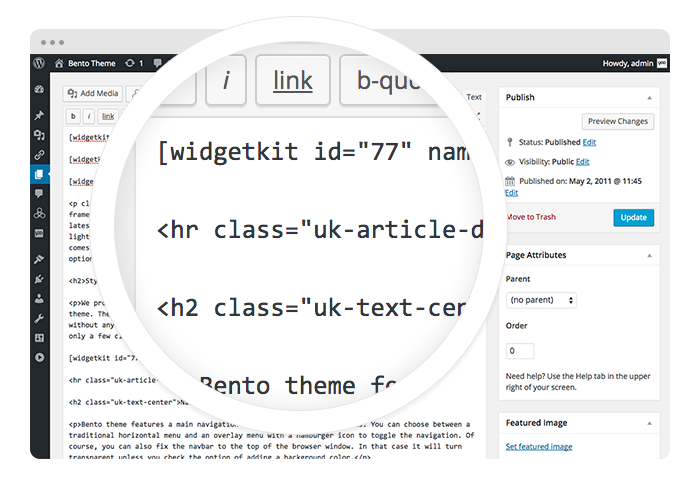
To get started, click on the Widgetkit button in your CMS edit view. Now choose the widget you would like to render, for example Grid. To create content for your widget, hit the New button and select the content type, for example media.
Explore the Interface
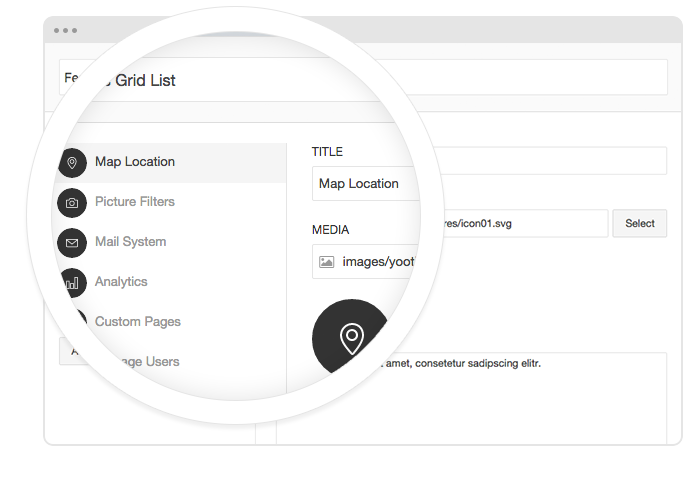
To create your content, you can add single content items by using Add Item. Alternatively you can use Add Media to select multiple items at once through the media library or manager of your CMS. Don’t forget to hit Save after you have created your items and then Close.
Using the shortcodes
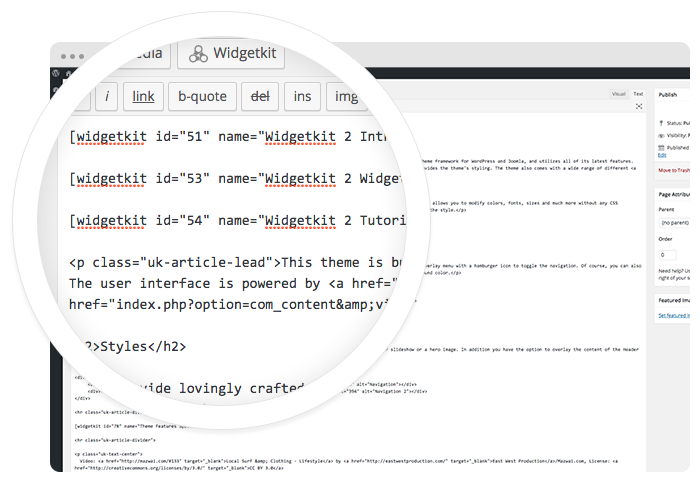
To finalize your widget, hit Insert. Now you will see a shortcode with the ID and settings of your widget. If you have changed the default settings of your widget, the updated settings will be added to the shortcode. To select a different widget, click inside the shortcode and hit the Widgetkit button. Now click Change Widget.
Features
All widgets make use of modern web technologies
- Use shortcodes to show widgets anywhere
- Built with the UIkit framework
- Supports touch gestures for mobile devices
- Clean and lightweight code
- All widgets are fully responsive
- User friendly interface